
How do you export a Cloudflare DNS zone?
In the Cloudflare dashboard, select your domain, open DNS → Records, then use Export in the records toolbar. Depending on the dashboard version, the control may appear under Import and Export. Save the resulting zone file locally. Repeat after a documented change or on your next review date, then compare the two copies in the Recon.ph workspace. This is an export of the zone's configured DNS records, not a scan of every server or service associated with the domain.
Dashboard procedure
- Sign in to the correct Cloudflare account and select the intended zone.
- Open DNS, then Records. Confirm the selected domain before exporting.
- Open the Export menu in the records toolbar and select the blue Export button. If your dashboard instead has Import and Export, open it and choose Export. Your browser downloads the zone text.
- Look for an exported filename such as
example.com.txt. The export contains BIND-format zone text even when the filename ends in.txt. Preserve that original; make a working copy named, for example,example-com-2026-09-27.zoneso the file type is unambiguous. If the workspace does not recognize a.txtexport, import the.zonecopy and review its warnings. - Keep a note of the account, zone, export time and authorized review scope outside the file. Do not post a real zone publicly merely to demonstrate a comparison.
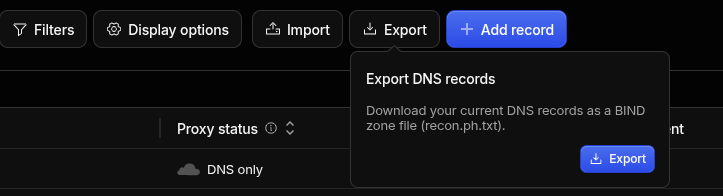
Cloudflare DNS Records export menu (September 2026). The downloaded file is a BIND-format zone export; the filename in this example ends in .txt. Select the image to view it at full size.
If the domain is registered at Cloudflare but uses another provider for authoritative DNS, obtain the configured records from that authoritative provider. Registration and authoritative DNS hosting are different services.
Optional: use the API for an authorized export
Cloudflare documents GET /zones/{zone_id}/dns_records/export with a token authorized for DNS Read or DNS Write. On a computer with curl, using your own zone ID and an appropriately scoped token:
# Supply the token through your protected shell/session, not a committed script.
# CLOUDFLARE_API_TOKEN and ZONE_ID must already be set in your environment.
curl -fsS \
  -H "Authorization: Bearer $CLOUDFLARE_API_TOKEN" \
  "https://api.cloudflare.com/client/v4/zones/$ZONE_ID/dns_records/export" \
  -o example-com.zone
Never upload the token, shell history, or account credentials to Recon.ph. Check that the saved result is a zone file and not an API error response before importing it. Treat the resulting DNS inventory as potentially sensitive operational data.
What does the workspace compare?
The zone-format guide explains $ORIGIN, relative owners, normalized names and supported record types. Use an older export as Before and the newer export as After, set example.com as scope, and examine warnings before interpreting the changes. See a worked comparison for expected results using fictional records.
Cloudflare adds provider-specific attributes to comments: an export can mark proxy status with cf-proxied:true or cf-proxied:false. The current Recon.ph comparison ignores comments, TTL and provider settings. A proxy-only change will not appear as a record change; consult Cloudflare or your change records for those differences. Likewise, an exported record is not proof that its origin is healthy or reachable.
Before making an operational decision
Preserve the source files and compare exports from equivalent zones, views and collection windows. An absent record may reflect a missing input, different account, DNS split view or file-format limitation rather than actual deletion. For a repeatable follow-up process, use the asset change-review checklist.